

Tool Interface Preview
Video Cutter
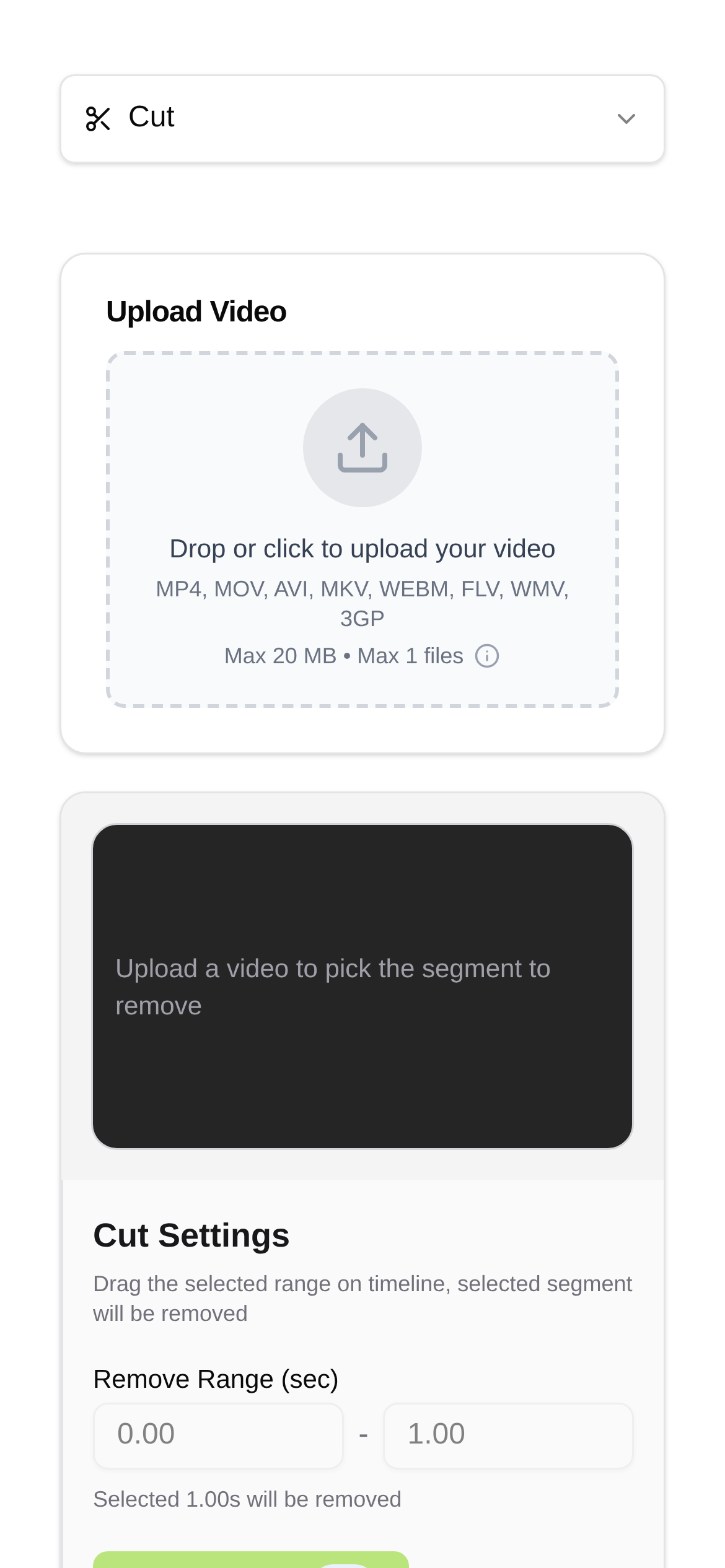
Do you find yourself wrestling with bulky, complex editing software every time you just want to trim a small clip from an MP4 video? Or maybe you just give up because it's too much of a hassle? Whether you want to extract the best few seconds of a video to share with friends or trim away useless footage, we all want the output quality to be just as good as the original, without any compromise. Today, I'm going to share how I losslessly cut MP4 video clips online. It truly makes the process a breeze, allowing you to leave all those complicated steps behind.
Why Do I Recommend Online Lossless Video Cutting?
Back in the day, just to edit a video, I forced myself to learn professional software like Adobe Premiere Pro and DaVinci Resolve. Their features are undeniably powerful, but for someone like me who just wants to do some simple trimming, the learning curve was astronomical—talk about using a sledgehammer to crack a nut. Later, I tried some free desktop editing software, but they either added watermarks, were full of ads, or worse, compressed a perfectly good video beyond recognition. So, when I discovered online lossless video cutting, it felt like an absolute lifesaver! There's no need to install any software; you just open your browser and start using it. The interface is incredibly intuitive, and most importantly, it preserves the original video quality. The trimmed clips are just as clear as the original video, which is why I absolutely love it.
This method is especially perfect for those of us who want to process videos quickly and efficiently:
- Content creators and bloggers: With countless media assets on hand, you always want to quickly extract highlights or split a long video into several short clips for publishing.
- Social media enthusiasts: Who doesn't want to share the coolest moments from a video or create an eye-catching short clip themselves?
- Everyday users like me: For occasional video processing in daily life, like trimming the beginning and end of a meeting recording, or extracting funny moments from a family gathering as a keepsake.
- Quality perfectionists: For friends who want to ensure not a single detail or pixel is lost after trimming.
How to Losslessly Cut MP4 Video Clips Online: A Step-by-Step Guide
Today, I'll use an online tool I frequently use—Video Cutter—as an example to walk you through the exact steps. What attracts me to this tool is that it not only supports mainstream video formats like MP4, MOV, AVI, and MKV, but more importantly, it explicitly promises to retain the original quality upon export, making it the ideal choice for lossless MP4 video cutting. Many friends have messaged me asking, "How do I use Video Cutter?" Don't worry, I'll guide you through it step by step below.
-
Open the tool website: First, open your browser and visit the Video Cutter page. You'll find its interface to be very clean, and it's exactly this simplicity that makes it so handy to use.
-
Upload your MP4 video: Click the large "Upload Video" button in the middle of the page, or if you prefer, simply drag and drop the MP4 file you want to edit into the designated area. The tool will automatically begin uploading and parsing the video. You'll need to wait a moment here; the exact time depends on your video size and current network conditions.
-
Accurately select the cutting range: Once the video is successfully uploaded, you'll see a video player with a timeline below it. Next comes the crucial step: you can drag the left and right sliders on the timeline to accurately select the video clip you want to keep. This tool can usually pinpoint down to the millisecond, ensuring you cut out the exact perfect moment you want. If you have stricter requirements for the timing, you can also directly input the start and end times, which is incredibly convenient for someone like me who needs it to be accurate to the second.
-
Preview and confirm the result: After selecting the cutting range, don't rush to save. Click the play button to preview it first. Confirm that the trimmed clip is exactly what you envisioned, with nothing extra and nothing missing. This step seems simple but is actually very important, as it saves you the hassle of having to redo the process.
-
Start cutting and download: Once everything is confirmed, you can click the "Start Cutting" or "Save" button. The tool will quickly process your video. Once it's done, you can click the "Download" button to save the trimmed MP4 video to your device. Throughout the entire process, the quality remains uncompromised, and it's fast and convenient.
Online Video Editing: Potential Issues and My Tips
-
How does the "Video Cutter" tool compare to professional software? Honestly, compared to professional editing software that costs hundreds or thousands of dollars, online tools are indeed more focused on core cutting functions and won't have as many fancy effects or complex transitions. But for someone like me who just wants to losslessly cut MP4 video clips, the convenience and ease of use of online tools are absolute game-changers. Especially when I need to process a video urgently, it saves me a ton of valuable time. So, who is it for? As I mentioned above, it's perfect for anyone who wants to cut videos quickly and with high quality, without the hassle of installing cumbersome software.
-
What if the upload and download speeds are slow? This is usually caused by network issues. My recommendation is to use it when your network connection is stable. If your video file is very large, the upload and download times will naturally be longer. However, excellent tools like "Video Cutter" usually optimize their servers, so the overall processing speed is still quite fast.
-
Is the quality truly lossless? "Lossless" here means that during the cutting process, the tool does not re-encode or compress the video, which minimizes quality loss to the greatest extent possible. As long as the tool claims to be lossless and you choose the same output format as the original video, theoretically, the quality will not change at all. This is something I value highly when choosing a tool, and it's one of the standout features of the "Video Cutter" tool.
-
What video formats does it support? The Video Cutter tool I recommend supports mainstream formats like MP4, MOV, AVI, and MKV, which basically covers most of our daily needs. However, before uploading, I still suggest doing a quick check to ensure your video format is on its supported list.
-
Is there a file size limit? It's true that some online tools impose file size limits for free users. Before uploading a particularly large file, you can check the instructions on the tool's page. If you do hit a limit, you might consider upgrading your service or trying a similar tool.
After reading through these steps, you'll find that losslessly cutting MP4 video clips online is actually incredibly simple to do. Say goodbye to all the hassle, enjoy an efficient editing experience, and take your video processing workflow to the next level!
Quick Tip: While online tools are convenient, the quality varies greatly. Be sure to choose reputable websites that explicitly state they use data encryption, so you can better protect your personal privacy and data security.