

Tool Interface Preview
Video Volume Adjustment
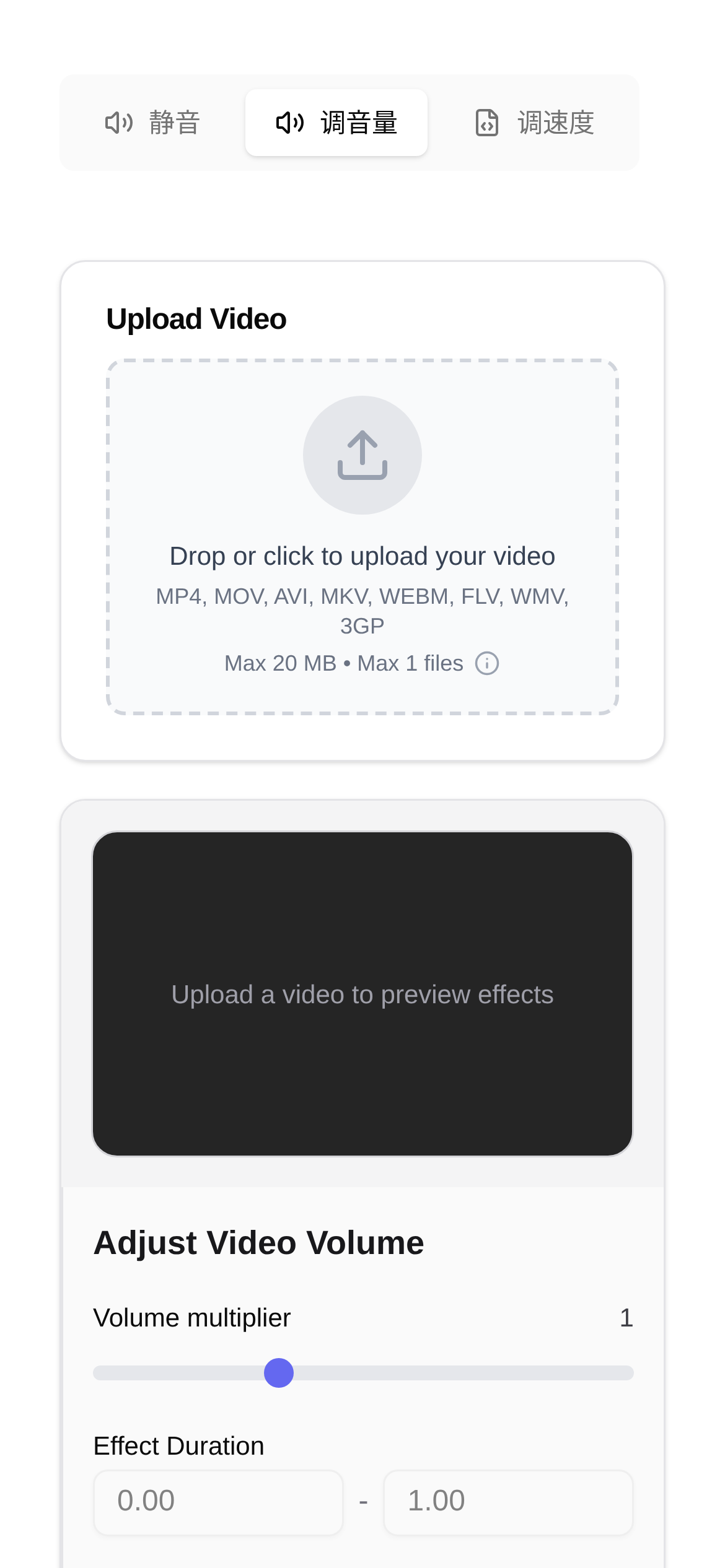
Is your video volume either too low or too loud? Here is a simple trick to fix it effortlessly!
Have you ever run into this annoying situation: you excitedly open a video, only to find the sound is either as quiet as a mosquito or so loud it makes your ears ring? Whether it's a blockbuster movie downloaded from the internet, a funny clip shared by a friend, or a vlog you worked hard to shoot, incorrect volume levels can really ruin the mood. Constantly dragging the volume slider on your media player is not only a hassle but can also make you miss great moments. Today, I'm going to share a super practical method that completely solves video volume issues, and it's a lossless adjustment that won't degrade your video or audio quality!
Always Having Video Volume Issues? This Feature is a Lifesaver!
To be honest, video volume might seem like a minor detail, but it heavily impacts the viewing experience. How did we deal with it in the past? We either repeatedly adjusted the player's volume slider or forced ourselves to learn overly complex professional video editing software. But for everyday users who just want to make a simple volume tweak, that's pure torture. That's why the online Video Volume Adjustment tool I'm recommending today is tailor-made to solve this exact headache.
The best part about it is its ability to precisely adjust the volume of the audio track within the video file, supporting a lossless adjustment of ±24dB. What does this mean? It means you don't have to re-encode the video, and you don't have to worry about losing image or sound quality to get the volume exactly where it sounds best. Whether the audio is too quiet and needs a boost, or too loud and needs to be lowered, it handles it with ease. Keep in mind that some built-in volume boosters in media players can accidentally ruin the audio quality, but directly modifying the video file this way yields much better results.
Who Needs "Video Volume Adjustment"? Probably You!
This tool has a wide range of applications. As long as you deal with videos, you'll likely find it useful:
- Video Creators and Vloggers: If you find that the audio levels are too low or too high after shooting and editing your hard work, you can quickly adjust it without having to redo everything or re-upload.
- Movie and TV Show Fans: Downloaded movies or series from different sources often have varying volume levels. This helps normalize them to the perfect viewing volume.
- Teachers and Students: When creating or watching educational videos, it's crucial to ensure the audio is crystal clear so that volume issues don't impact the learning experience.
- Everyday Users: Whether it's a funny meme shared by a friend or a family video recorded on your phone, this tool comes in handy whenever the volume is off.
- Professionals Handling Meeting Recordings and Presentations: Ensure your recorded meetings or presentation videos have the right volume for future viewing or sharing.
Simply put, whenever you find yourself wondering "what to do if the video volume is too low," "how to fix a video that is too loud," or "how to losslessly increase or decrease video volume," this tool provides a fast and effective solution.
Step-by-Step Guide: 1-Click Lossless Video Volume Adjustment is Just That Simple!
Adjusting video volume with this tool is incredibly simple. There's no software to download, and everything is done entirely online. Here are the detailed steps:
-
Go to the Tool Page: First, open your browser and visit the Video Volume Adjustment tool page. All operations start here.
-
Upload Your Video File: Click the "Choose File" button on the page, then select the video you want to adjust from your computer or phone. This tool supports common video formats like MP4, MOV, and AVI, offering great compatibility. Upload speeds are generally fast, depending on your internet connection and the file size.
-
Adjust the Volume Level: Once the video is successfully uploaded, you will see a volume adjustment slider or input box. You can drag the slider for intuitive adjustments or directly enter a number (for example, +6dB increases the volume by 6 decibels, while -3dB decreases it by 3 decibels). Keep in mind that the ±24dB adjustment range is quite large and sufficient for most scenarios. I recommend making small adjustments first and listening to the results until you are satisfied.
-
Preview and Export: Some tools offer real-time previews so you can hear the effect immediately. If not, they usually provide a download link after processing. Once you are sure the volume is set, click the "Start Processing" or "Export" button. The tool will process your video and generate a brand-new file with the adjusted volume.
-
Download the Finished Video: After processing is complete, click the "Download" button to save the adjusted video to your device. Now, you can play the video and enjoy a perfect audio experience!
The entire process is very straightforward. Even if you are a complete beginner, you can easily get the hang of it and say goodbye to the frustration of inaudible video sound.
FAQs: What to Keep in Mind When Using "Video Volume Adjustment"?
-
Q1: Will adjusting the volume affect video quality? A1: This tool focuses on "lossless adjustment." It primarily processes the video's audio track without re-encoding the entire video stream. Therefore, it generally has no impact on video quality. This is its biggest advantage over traditional video editing software or transcoding tools.
-
Q2: What video formats are supported? A2: It generally supports mainstream video formats like MP4, MOV, AVI, and MKV. In the rare event you encounter an unsupported format, you can try converting it to MP4 first before adjusting.
-
Q3: What does the "±24dB" adjustment range mean? A3: dB (decibel) is a unit used to measure sound intensity or power. +24dB means the volume can be amplified significantly, while -24dB can reduce the sound almost to mute. This range is more than enough to meet most of our daily and professional needs.
-
Q4: Is the processing speed fast? A4: Processing speed depends on the video file size, your internet speed, and server load. Generally, small videos process very quickly. Larger videos might take a bit more time, but it is definitely much more efficient than downloading, installing, and learning how to use professional software.
-
Q5: Does it cost money to use this tool? A5: Currently, this tool is free to use. For specific pricing policies, it's best to refer to the official website's instructions.
With the introduction above, I believe you now have a clear understanding of how to "losslessly adjust video volume in one click." Start saying goodbye to those annoying volume issues right now!