

Tool Interface Preview
Microphone Tester
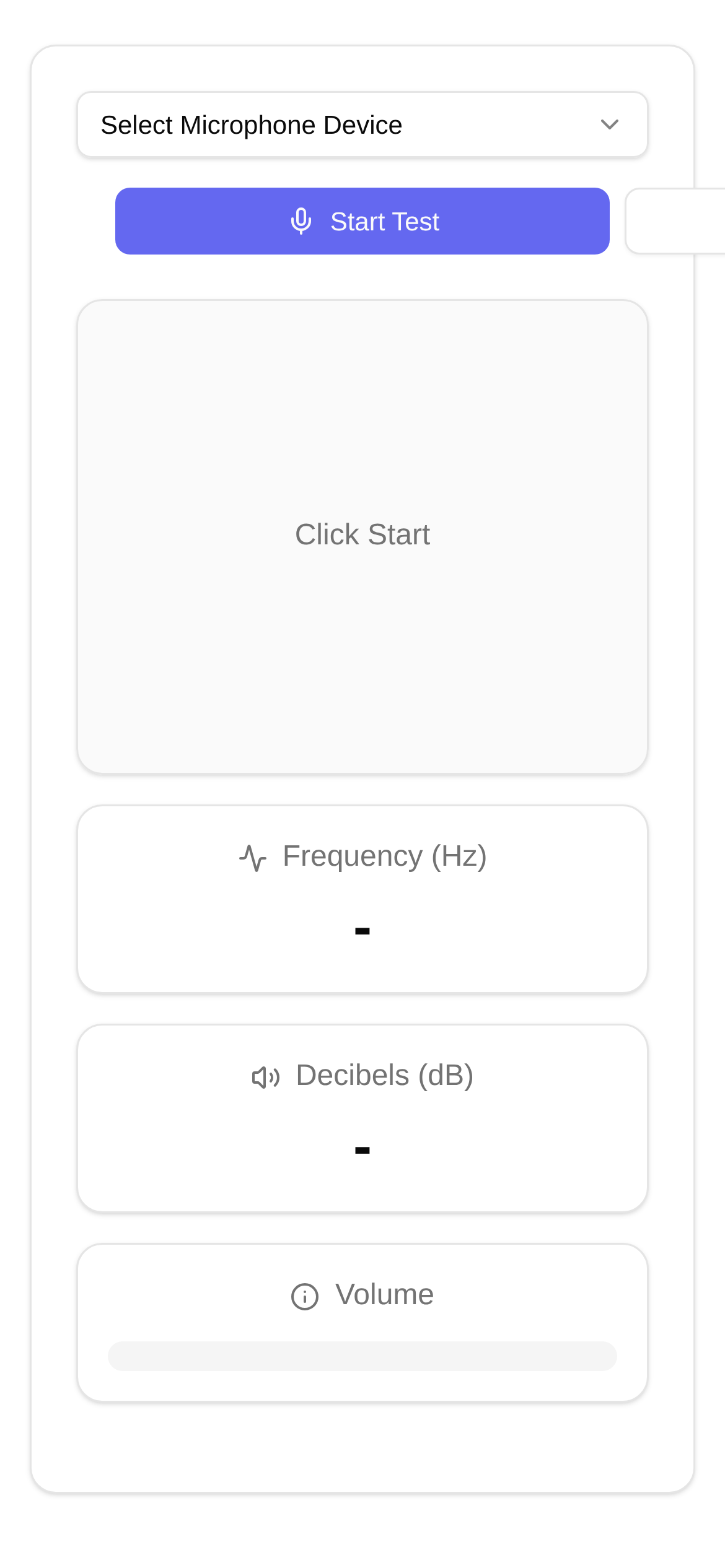
Have you ever experienced that moment of instant panic? You're about to join an important meeting or record an awesome voiceover, and your microphone suddenly quits on you! Your computer settings show it's connected, but there's just no sound... Don't worry, I'll show you a quick and easy way to fix your microphone issues in minutes and say goodbye to the frustration!
Microphone Not Working? It's Not Your Fault!
Think about it: whether you're a professional podcaster, an online teacher, a student, or a gamer, a reliable microphone is essential for smooth communication and a great experience. When a mic suddenly goes silent, it could be a driver issue, incorrect settings, or a hardware failure. In the past, troubleshooting was a hassle—digging through complex system settings or even restarting your computer, wasting time and effort. Is there a more direct and convenient way to test it?
Say Goodbye to the Hassle: Test Your Mic Online!
Absolutely! Today, I want to introduce the "Microphone Tester," designed specifically to solve these headaches. It's a powerful online tool that requires no downloads or installations—just open the webpage and start using it. Now you don't have to wrestle with tedious settings to quickly figure out what's wrong with your mic.
What can it do?
- Real-time volume monitoring: When you speak into the mic, a dynamic waveform appears on the screen instantly, giving you a visual confirmation of whether your mic is picking up sound and how loud it is. It's clear at a glance!
- Easy device switching: If you have multiple microphones connected (like a built-in laptop mic, a USB mic, or a headset), this tool lets you easily switch between them to test each one individually and ensure they're all working.
- Speaker testing: Some advanced testers can also play a test sound to help you confirm if your speakers or headphones are working properly alongside your input.
- Zero storage required: As a web-based tool, its biggest advantage is that it's ready to use instantly without taking up any storage space on your computer.
When should you use it?
- Before meetings: Ensure you can speak clearly on platforms like Zoom, Microsoft Teams, Skype, or Google Meet.
- Before recording: Check if your mic's audio is clear to avoid the frustration of realizing halfway through that nothing was recorded.
- Gaming and voice chat: Ensure smooth voice communication with your teammates without dropping the ball.
- Testing new equipment: Quickly verify if a brand-new microphone or headset works properly the first time you plug it in.
- Troubleshooting: Whenever your mic acts up, this is your go-to first step for diagnosing the issue.
How to Use the Microphone Tester? A Step-by-Step Guide!
Let's use this super convenient Microphone Tester as an example to see how to check your mic step by step. Follow along with me:
- Open the webpage: Enter the URL https://www.toolkk.com/tools/microphone-tester into your browser and hit Enter.
- Grant permissions: Once the page loads, your browser may pop up asking for permission to use your microphone. Remember to click "Allow" or "Grant Access"; otherwise, it won't be able to test your mic.
- Select the right device (if needed): If you have multiple microphones plugged in, there will be a dropdown menu listing all available mics. Select the one you want to test.
- Start speaking: Speak into your selected microphone or make some noise, and watch the volume waveform on the page. If your mic is working normally, you'll see the waveform bounce along with your voice.
- If it's working: The waveform will clearly jump, and the louder the sound, the higher it goes.
- If there's an issue: The waveform will either stay completely flat or only show tiny jitters, indicating that the mic isn't picking up sound or the volume is extremely low.
- Adjust the volume: If the waveform movement is very weak, try going into your system settings to increase the microphone input volume, then come back and test it again.
With just these few simple steps, you can quickly find out if your microphone is working properly. This tool is not only easy to use but also highly visual, making it an absolute lifesaver for solving "no sound" microphone issues.
Common Issues and Troubleshooting Tips
Even when using a "Microphone Tester," you might still run into minor hiccups. Don't worry, here are some common issues and my top tips to fix them:
- Browser permission issues: Double-check if you've actually allowed the browser to access your microphone. Different browsers (like Chrome, Firefox, or Edge) handle permissions slightly differently, but there's usually a microphone icon or prompt near the address bar.
- System privacy settings: Both Windows 10/11 and macOS have strict privacy settings that might block certain apps or websites from using the mic. Go to your system settings, look for "Microphone Privacy" options, and ensure you've allowed apps and desktop programs to access your microphone.
- Microphone driver issues: If the online test shows no sound and you've tried everything else, it's highly likely a driver issue. Try updating your microphone drivers or reinstalling them completely.
- Loose connection? Check if your microphone cable is plugged in securely, and ensure your USB mic is connected to a working USB port.
- Wrong microphone selected: When using meeting or recording software, always make sure you've selected the correct microphone as your input device.
- Hardware failure: If you've tried all the methods above and it still doesn't work, it's likely a hardware failure with the microphone itself. It might be time to consider getting a new one.
Final Thoughts
While a "silent microphone" might sound like a small issue, it can seriously disrupt our work and daily lives. With an online tool like the Microphone Tester, we can quickly diagnose problems and save a ton of troubleshooting time. Bookmark this URL: https://www.toolkk.com/tools/microphone-tester. The next time you face the awkwardness of a dead mic, you'll be able to fix it with ease! I hope this guide helps you out!