

Tool Interface Preview
Video Volume Adjuster
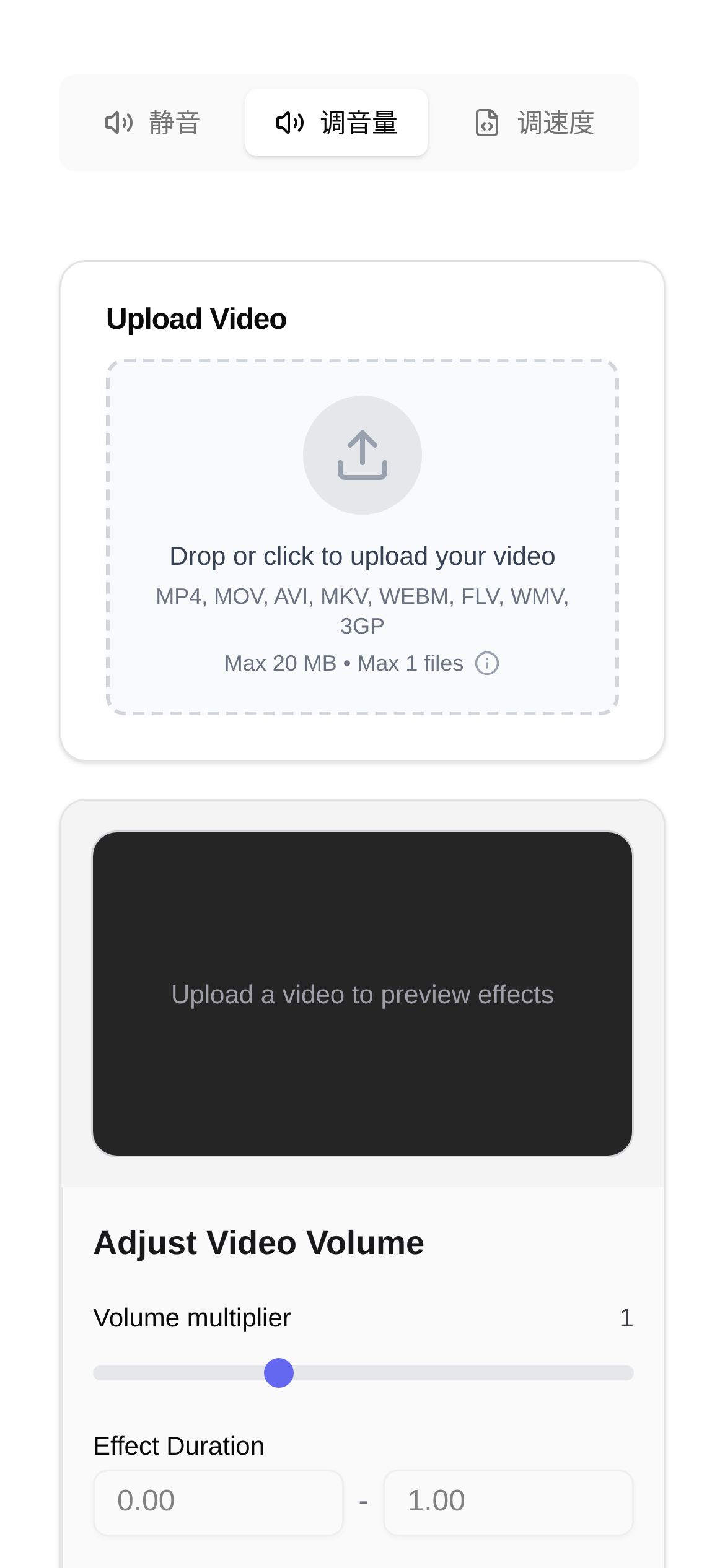
Have you ever run into these annoying situations? A movie you downloaded from the internet is so quiet you can barely hear it without headphones; a video you worked hard to edit has background music and dialogue volume that goes up and down like a roller coaster, driving your viewers crazy; or maybe you're watching a live stream replay, and a sudden loud noise makes you jump and almost drop your phone? Honestly, in our digital age, video volume issues are incredibly common and super frustrating. Today, I'm going to share a hidden gem with you: the ultimate Video Volume Adjuster. It's guaranteed to help you say goodbye to these troubles for good!
How Does Video Volume Adjustment Work? Lossless and Precise Control is Key!
Before we dive into the specific tool, let's briefly explain the principles of video volume adjustment. What we commonly call "volume" is actually referred to as "gain" in technical terms. Simply put, turning up the volume means adding gain to the audio signal; conversely, turning it down means attenuating the signal. An ideal volume adjustment must be "lossless," meaning the process shouldn't introduce noise or degrade the audio quality. At the same time, it requires "precise control," ideally allowing for small, fine-tuned adjustments to meet highly specific needs.
While professional video editing software on the market can adjust volume, they are often complex to operate and have a steep learning curve for non-professionals. Moreover, when some tools boost the volume significantly, the audio quality can become distorted. So, the question is: is there a tool that guarantees lossless audio quality, offers precise adjustment, and is incredibly easy to use? Absolutely!
Introducing: The Video Volume Adjuster Tool!
The "ultimate tool" I highly recommend today is the Video Volume Adjuster. It is an online tool specifically designed to adjust the volume of audio tracks in video files. It supports ±24dB of lossless adjustment, allowing you to easily increase or decrease the volume and completely say goodbye to the awkwardness of inconsistent audio levels. So, who is this tool for? And what makes it stand out compared to other tools?
Feature Highlights: Practical and Easy to Use!
The core function of this tool is its precise control and lossless processing of video volume. It doesn't just crudely "amplify" or "reduce" the volume; instead, it offers a very wide adjustment range (±24dB). This means whether you have a video that is too quiet to hear and needs a massive volume boost, or audio that needs fine-tuning to achieve perfect balance, it can handle it. Its "lossless adjustment" feature is a major highlight, ensuring that you don't sacrifice original audio quality while adjusting the volume. For those who care about audio fidelity, this is absolutely crucial!
Use Cases: Meeting All Your Needs!
- For Movie and TV Fans: Do the movies and TV shows you download often have fluctuating volume? Use this to normalize the audio and instantly upgrade your immersive viewing experience!
- For Content Creators: When editing Vlogs or tutorial videos, are the background music and dialogue volumes always out of sync? Give it a quick adjustment, and your work will instantly sound more professional!
- For Students and Professionals: In recorded online classes or meeting videos, do different speakers have different volume levels? Normalize the volume to significantly improve your learning and meeting efficiency.
- For Social Media Sharers: On platforms like TikTok or YouTube, videos with volume that is too low or too high can negatively impact views. Use this to optimize the volume and get more people to enjoy your content.
- For Restoring Old Audio: Some old videos or audio recordings have very low volume. Boost the gain with this tool to make them much easier to hear.
How to Use: Incredibly Simple!
Wondering "how to adjust video volume"? The operation process couldn't be more intuitive. Even if you're a complete beginner, you can easily get the hang of it:
- Open the Tool: Open your browser and go directly to the Video Volume Adjuster page.
- Upload Video: Click the "Choose File" button on the page and upload the video file you want to adjust. It supports many common video formats on the market.
- Adjust Volume: You will see a volume adjustment slider or input box. To decrease the volume, drag the slider to the left (or enter a negative number); to increase it, drag it to the right (or enter a positive number). You can also preview the effect in real-time while adjusting, which is very convenient.
- Start Processing: Once you are satisfied with the volume, click the "Start Processing" or "Adjust" button.
- Download the Result: After processing, the tool will provide a download link. Just click it to download your video with the adjusted volume.
The entire process is completely online, with no need to download or install any software. It's fast and convenient! If you're still looking for a "video volume adjustment tutorial," this article is the best guide you'll find!
Frequently Asked Questions (FAQ)
- Q: Will adjusting the volume affect video quality? A: Not at all! This tool only processes the audio portion of the video and has absolutely no impact on the visual quality. It truly achieves "lossless gain."
- Q: What video formats are supported? A: Generally, it supports mainstream video formats like MP4, MOV, AVI, and MKV. For a specific list of supported formats, we recommend checking the instructions directly on the tool page.
- Q: What does ±24dB mean? Is the adjustment range large? A: dB (decibel) is the unit used to measure sound loudness. A range of ±24dB is very large and more than enough to handle the vast majority of volume adjustment needs. Positive numbers increase the volume, and negative numbers decrease it.
- Q: How is the processing speed? Is it fast? A: Processing speed mainly depends on your video file size and internet connection. Generally, smaller video files are processed incredibly fast.
- Q: Are there other similar tools available? A: Of course! There are desktop video editing software options like Adobe Premiere Pro and DaVinci Resolve, as well as other online tools that can adjust volume. However, compared to them, the advantage of this Video Volume Adjuster is that it's incredibly simple, offers lossless processing, and requires no downloads or installations, making it extremely convenient to use. If you just want to easily adjust a video's volume without installing complex software, this tool is definitely your top choice.
Summary
As a focused and