

Tool Interface Preview
Pixel to Millimeter Converter
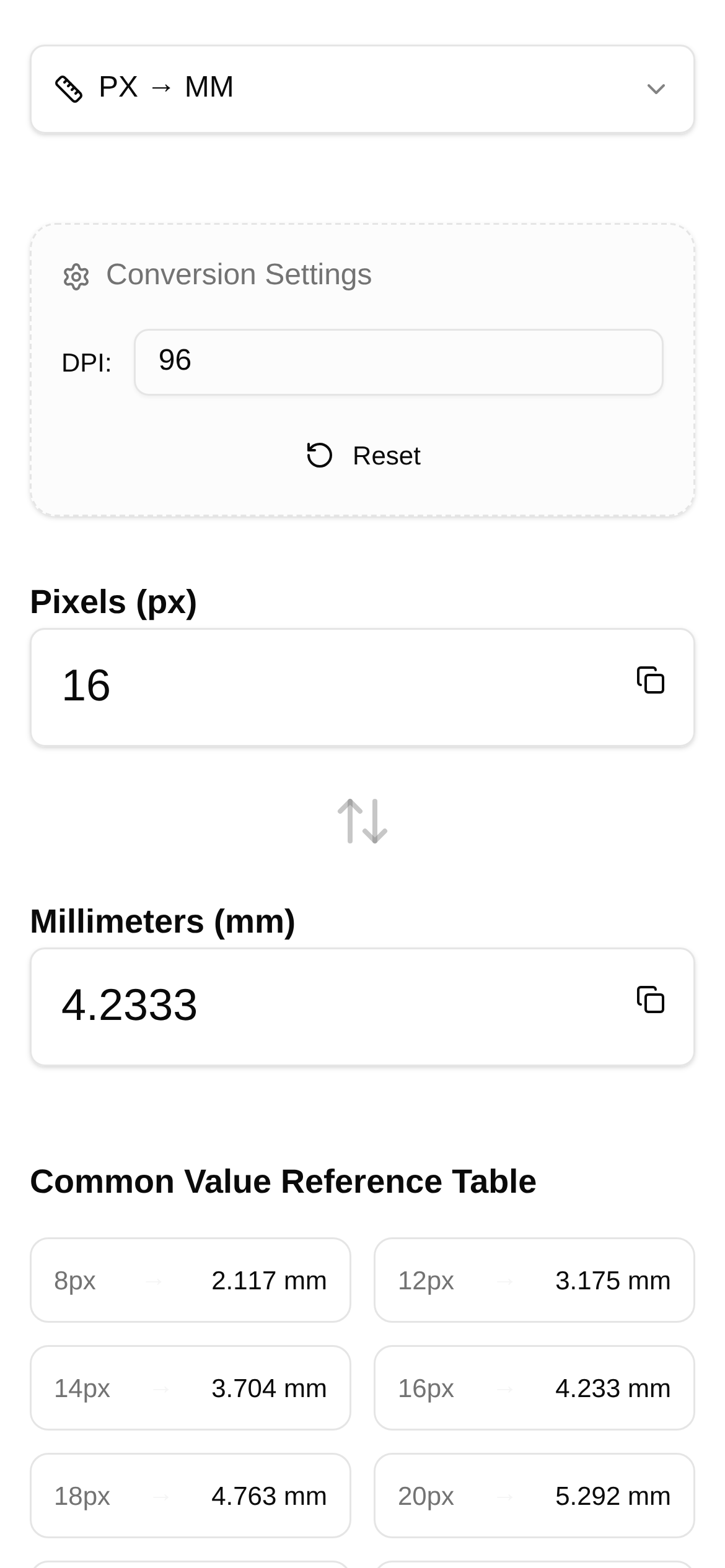
As UI designers, dealing with screen sizes and resolutions every day is second nature. But sometimes, our designs need to step outside the digital realm—like when we need to print a proof, build a physical mockup, or discuss exact screen dimensions with hardware engineers. That's when things can get confusing: how exactly do you accurately convert between pixels (px) and millimeters (mm)? It seems like a simple question, but it can be quite a headache when you actually face it. This doesn't just affect whether the final design matches your vision; it directly impacts the final presentation of the product.
A Handy Tool for Pixel to Millimeter Conversion
In the past, calculating pixels and millimeters meant either making rough estimates based on experience or digging through device specs—which was tedious and prone to errors. Today, I want to recommend a must-have tool for UI designers: the Pixel to Millimeter Converter. It's incredibly easy to use. By using the screen's PPI (Pixels Per Inch, which simply means how many pixels fit into one inch), it clearly calculates the physical size relationship between pixels and millimeters. It's not only great for estimating the actual size of UI mockups but also highly effective for print layouts and confirming hardware dimensions.
Finally Clearing Up Those Vague Sizing Issues
- Want to know the actual size of your design? For example, if you need to show a client exactly how large a design will appear on a real device, or if you want to build a scaled physical model, this tool instantly converts the pixel dimensions in your design file into actual millimeter measurements.
- Stop guessing with print designs. When designing billboards, posters, or business cards, you need to know exactly how large the elements will be when printed. By entering the PPI of the screen or printer, it accurately converts pixels to millimeters for you.
- Easier communication with hardware teams. You can directly provide millimeter data to hardware engineers, ensuring everyone is on the same page and avoiding misunderstandings caused by inconsistent units.
- Design across platforms with confidence. Although screen sizes vary wildly across devices, converting via PPI helps you better understand whether a specific element's physical size will increase or decrease on different devices, providing a reliable reference for cross-platform design.
Using the Pixel to Millimeter Converter is Incredibly Simple
This Pixel to Millimeter Converter is very user-friendly, and even beginners can master it in no time:
- Open the tool: Click this link https://www.toolkk.com/tools/px-mm-converter to access the Pixel to Millimeter Converter page.
- Enter the PPI value: First, you need to know the PPI of your target screen or device. This number can usually be found in the device's specifications. For instance, the iPhone 15 Pro Max has a PPI of around 460, while some printers might be 300 or higher. Enter this number into the "PPI" input field.
- Enter the pixel value: Next, input the pixel value you want to convert into the "Pixels (px)" field—for example, if your UI element width is 375px.
- View the results: The tool will instantly and automatically calculate the corresponding millimeter (mm) value. You can also do this in reverse by entering a millimeter value to calculate the pixels.
Frequently Asked Questions:
- Q: What if I don't know the device's PPI?
- A: You can find the PPI for most devices in their official spec sheets, on the product packaging, or by checking third-party websites like GSMArena. For PC monitors, you can also do a rough calculation: "Resolution ÷ Screen Size (in inches)".
- Q: Why does the same 100 pixels result in different millimeter values on different devices?
- A: Exactly, this is because different devices have different PPIs. A higher PPI means more pixels are packed into the same physical area. Therefore, the same pixel value will appear physically smaller on a high-PPI device, and vice versa. This is exactly why the Pixel to Millimeter Converter is so useful—it solves the headache of figuring out how pixels and millimeters correspond, freeing designers from stressing over device differences.
- Q: How is this tool different from calculating it manually?
- A: If you calculate it manually, you have to remember the formula (Millimeters = Pixels / PPI * 25.4) and it's easy to make decimal errors. This tool is much more convenient. It has an intuitive interface, calculates quickly and accurately, and eliminates tedious math, instantly boosting your workflow efficiency.
- Q: How does this "Pixel to Millimeter Converter" compare to similar tools?
- A: The biggest advantage of this tool is that it's clean and efficient. There are no ads, and it focuses purely on converting pixels and millimeters. Plus, it's ready to use right away—no registration or login required, making it incredibly convenient for daily work.
A Few Quick Tips:
Remember, PPI is the critical factor in converting between pixels and millimeters. When designing or communicating with others, always ensure the PPI value you are using is accurate so your results will be precise. Especially when dealing with printed materials or hardware manufacturing, even a tiny margin of error can lead to increased costs or a final product that doesn't meet expectations. So, while this Pixel to Millimeter Converter is a great helper, the prerequisite is that you understand PPI and can obtain it accurately. I hope this quick guide helps UI designers say goodbye to the frustrations of pixel and millimeter conversions once and for all, making your design work more precise and efficient!