

Tool Interface Preview
Pixels to Inches Converter
Hey, we navigate the digital world every day, almost inseparable from various screens and images. Have you ever experienced this: an image looks incredibly crisp on your phone, but the moment you move it to your computer, it instantly becomes "blurry"? Or, you hear designers talking about "resolution" and "PPI," leaving you completely confused about what these advanced concepts mean? Today, let's break down this seemingly inconspicuous but actually crucial element—Pixel Density (PPI)—and see how it quietly affects our eyes and daily work.
What Exactly is PPI? What is it Used For?
PPI stands for Pixels Per Inch, which literally means "how many pixels are in one inch." Simply put, it measures exactly how many pixels can be crammed into a physical space of one inch in length. The higher this number, the more densely packed the pixels are—like sand—on the same sized screen, naturally making the image finer and clearer. Conversely, if the PPI is low, the image will look a bit "grainy," and you might even see those little jagged edges.
You can think of PPI as the "firmness" of an image. For example, if you have a small one-inch square canvas and densely draw 100 dots on it, its density is 100 PPI; if you draw 300 dots, the density is naturally 300 PPI. Obviously, a 300 PPI canvas can display more subtle details, smoother lines, and more natural color transitions.
Why is PPI So Important? Where Does It Shine?
Understanding PPI feels like mastering a "superpower" that is incredibly useful in many areas:
-
UI Design and Web Development: Especially in responsive design, understanding the PPI of different devices is a fundamental skill for designers and developers. An icon that looks perfectly fine on a low-PPI screen might instantly reveal its flaws and become blurry on a high-PPI screen (like the commonly known Retina displays). Therefore, designers must export assets at appropriate sizes based on the target device's PPI to ensure they look stunning on all screens. For instance, a 72px element in a design draft will have a much smaller physical size on a 300 PPI screen compared to a 72 PPI screen. If this isn't accounted for, layout issues can occur.
-
Print Proofing and Output: The printed materials we see daily usually have a much higher PPI than screen displays. Generally speaking, standard print quality requires 300 DPI (Dots Per Inch; this is similar to PPI, but DPI refers to how many ink dots a printer can produce per inch). If you send a low-PPI image directly to print, the result will likely be a blurry disaster. So, before handing your masterpiece over to the print shop, always double-check if the PPI is up to par.
-
Image Processing and Photography: Photographers also frequently need to consider the PPI of their photos during post-processing. This determines how large the photo can be printed or whether it will look satisfactory on specific devices. High-PPI raw images give you more room for cropping and zooming without worrying about losing details, making post-processing much more confident.
-
Buying Screens: Whether you're replacing a monitor or buying a new phone or tablet, PPI is a crucial metric for measuring display quality. Screens with a high PPI are more comfortable on the eyes and can effectively reduce eye strain during prolonged use, especially when reading dense text or viewing highly detailed images.
How to Use the Pixels to Inches Converter Tool?
In our daily work, we often need to convert pixel values into actual physical inches, or vice versa. At times like this, online tools like the Pixels to Inches Converter become lifesavers—absolute "magic tools." Based on your screen's PPI, it can accurately convert pixel (px) values into physical inch lengths, which is incredibly useful for UI design, web development, and print proofing.
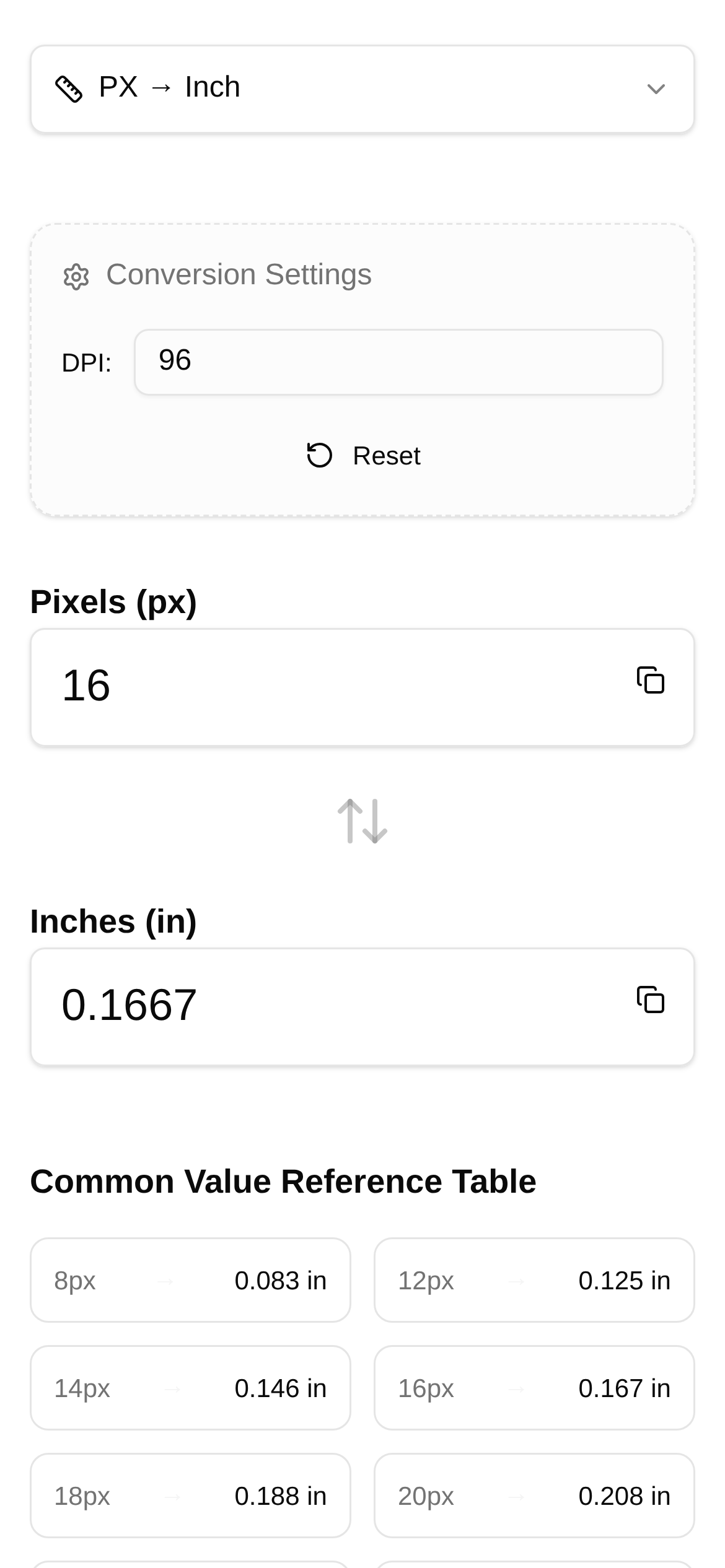
Let me use Toolkk's Pixels to Inches Converter as an example to show you exactly how it works:
- Open the tool: Type this URL into your browser: https://www.toolkk.com/tools/px-inch-converter.
- Enter the PPI: In the "Screen PPI" or "Device PPI" input box, enter the pixel density of your target device. For example, if your MacBook Pro is 227 PPI, enter 227. If you want to simulate print results, you usually enter 300. (Quick tip: Don't know your device's PPI? Don't worry, it's usually clearly stated in the device's official specs, or you can simply calculate it using "Screen Resolution / Physical Screen Size in Inches".)
- Enter the pixel value: In the "Pixel Value (px)" box, enter the pixel number you want to convert. For example, you have an image that is 1000px wide.
- View the results: The tool will intelligently calculate the corresponding physical inch length for you. For instance, on a 227 PPI screen, a 1000px element is actually about 4.4 inches.
This tool allows you to quickly handle px to inch conversions. Whether you want to do a pixel to inch calculation or are looking for a pixel to inch conversion tutorial, it's quick and easy. It completely solves the headache of how to convert pixels to inches, making it an indispensable online pixel to inch converter for designers and developers.
Frequently Asked Questions and Quick Reminders
- What is the difference between PPI and DPI? While both relate to "density," PPI specifically refers to the pixel density of screen displays or digital images, whereas DPI (Dots Per Inch) primarily refers to printer precision, meaning how many ink dots a printer can produce per inch. Although people sometimes use them interchangeably, understanding their subtle differences makes communication more professional and accurate.
- Is a higher PPI always better? Within a certain limit, a high PPI does make the display sharper and clearer. However, if the PPI is absurdly high, our naked eyes might not even be able to distinguish the details, and it will significantly increase the device's rendering load and consume more power. So, it's not always "the higher, the better"; you need to find the most comfortable and optimal balance.
- How do I find out my device's PPI? The most direct way is to check the device's spec sheet, or use online tools (like a screen PPI calculator) where you can easily calculate it by entering your screen resolution and screen size.
- Does PPI affect image size? PPI itself does not change the total number of pixels in an image. That means an image of 1000x800 pixels will always have a total of 800,000 pixels, regardless of the PPI. However, it does affect the physical size of the image when displayed on different mediums. For example, at 72 PPI, it might appear very large on a screen; at 300 PPI, it will appear smaller and finer on a screen or when printed.
- "Who is the pixel to inch converter for?" Anyone dealing with images, screen displays, print design, and development—including UI/UX designers, front-end engineers, photographers, graphic designers, and those who demand the ultimate display quality—will find this tool incredibly practical!
Understanding PPI not only helps us choose and use electronic devices more smartly but also makes our design and development work more professional and precise. The next time you see a blurry image or feel a screen's display quality is subpar, let the key metric "PPI" flash through your mind!
Disclaimer: This article is primarily intended to explain the concept of PPI and the practical use of related tools. The information provided is for reference only. If you are doing highly professional calculation, development, or printing work, please be sure to combine it with actual project requirements and industry standards, and it's best to consult professionals for advice just in case.