

Tool Interface Preview
Port Check
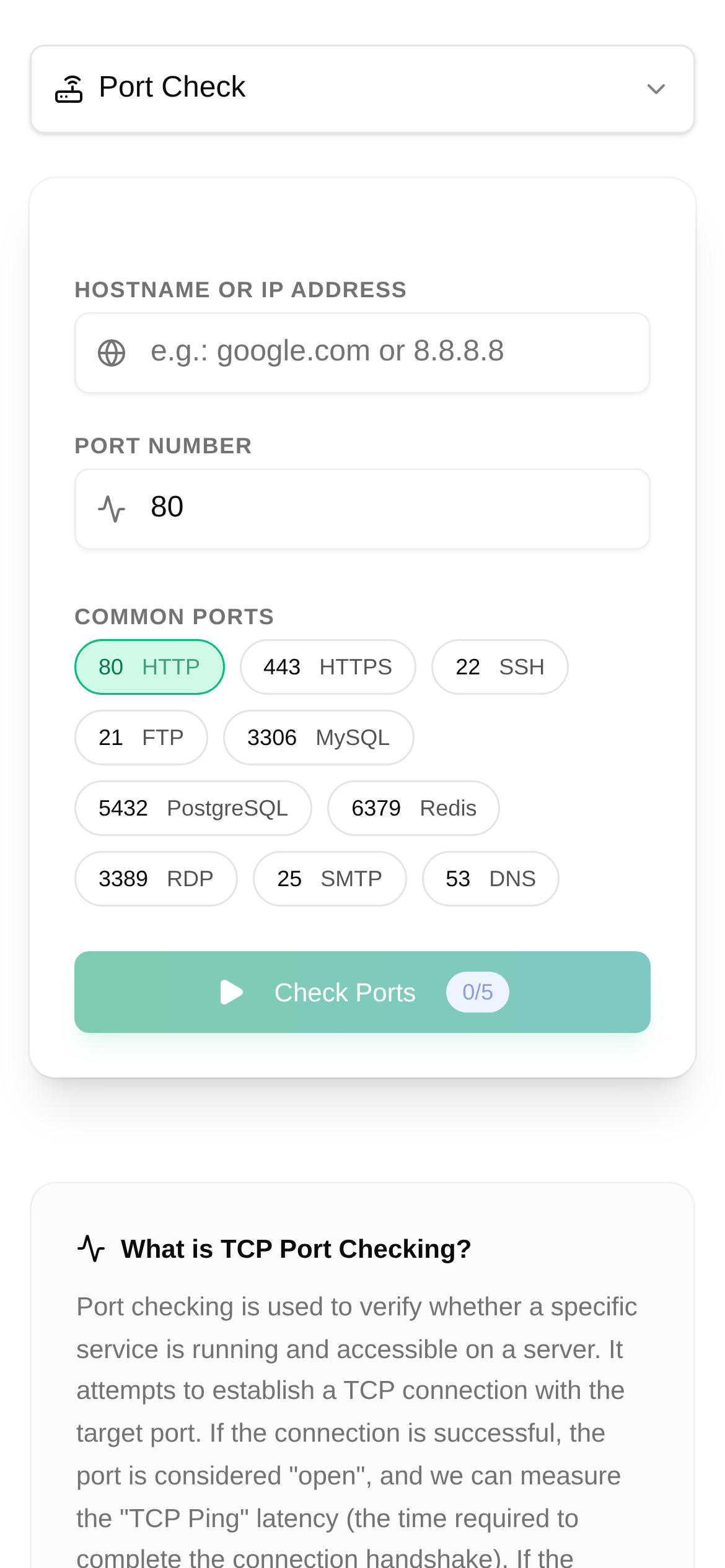
As a webmaster, developer, or network administrator, you've probably encountered this frustrating situation: the server is running perfectly, but you just can't access it from the outside. Is the firewall acting up, or did the service simply not start? Ultimately, these headache-inducing problems often point to one root cause—is the server port actually open? Today, we'll dive into the topic of server ports and teach you a few tricks to quickly and accurately determine their status.
What Does an Open Port Actually Mean?
In the networking world, you can think of ports as small doors on a server. Each door has its own number and corresponds to a specific service (for example, port 80 for web pages, port 22 for SSH remote login, and port 3306 for databases). When this "door" is open, it means external devices are allowed to pass through and communicate with the corresponding service on the server. Conversely, if the door is closed or blocked by a firewall, external requests simply can't get in, and the service becomes unavailable.
Figuring out whether a port is open is the first step in troubleshooting network issues, verifying service deployments, and conducting security checks. It helps you quickly pinpoint whether the issue lies at the network layer or the application layer.
Quick Diagnostic Tools: Your Network's X-Ray Vision
In the past, checking ports usually required command-line tools like telnet or nc. But for those who aren't used to typing commands, this can be quite a hassle. Fortunately, there are now many online port check tools that simplify this process to the extreme. Today, I highly recommend an incredibly useful online tool: Port Check (https://www.toolkk.com/tools/port-check).
This tool helps you quickly check whether a specific port on a given IP or domain is open or closed. No software installation is required—just open the webpage and use it. It's incredibly convenient for everyday network diagnostics and security verification. Whether you want to check if a website's 80/443 ports are accessible or see if SSH port 22 is blocked by a firewall, it can help.
How to Use the "Port Check" Tool (Step-by-Step Guide)
Using the Port Check tool (https://www.toolkk.com/tools/port-check) is incredibly simple. Even beginners new to networking can easily get the hang of it.
- Open the tool page: First, type this URL into your browser: https://www.toolkk.com/tools/port-check to access the Port Check tool page.
- Enter the target information: In the box labeled "IP Address or Domain," enter the server IP address (e.g.,
192.168.1.1) or domain name (e.g.,www.example.com) you want to check. - Enter the port number: Next, in the "Port Number" box, enter the specific port you want to check (such as
80,443,22, or3306). If you want to check multiple ports at once, you can separate them with commas (e.g.,80,443,3306). - Click "Check": Once the information is entered correctly, click the "Check" button on the page.
- View the results: The tool will immediately start checking and display the results below. It will typically tell you if the port is "Open" or "Closed." If it's "Open," it means external connections can reach it. If it's "Closed" or "Timed Out," it likely means the port isn't open, the service hasn't started, it's blocked by a firewall, or there's simply no network connectivity.
For example:
Let's say you want to see if port 80 of your website www.mywebsite.com is open. You just need to enter www.mywebsite.com in the IP/Domain box, enter 80 in the Port Number box, and click Check. The result will tell you whether your website can be accessed normally from the outside.
Common Questions and Troubleshooting Tips
Q1: The result shows the port is closed, but I know the service is running. What's going on?
A1: The most likely culprit is the firewall. Whether it's the server's built-in firewall (like iptables or firewalld on Linux, or "Windows Defender Firewall" on Windows) or the security groups/network ACLs provided by your cloud provider, they might be blocking external access to this port. You'll need to check your firewall rules and configure them to allow external IPs to access the corresponding port.
Q2: What are the common use cases for this tool?
A2:
- Post-deployment website verification: Check if ports 80/443 are open so the website can be accessed.
- SSH remote connection issues: Check if port 22 is reachable.
- Database remote connection failures: See if ports like 3306 (MySQL) or 5432 (PostgreSQL) are open.
- Setting up game servers: Ensure the required game ports are open to the outside.
- Network security audits: Periodically check if ports that shouldn't be open are accidentally exposed.
- Developer debugging: Quickly determine if local or remote service ports are ready.
Q3: My port check result says "Timed Out." How is this different from "Closed"?
A3: "Timed Out" usually means the request sent out never received a response. This could be due to high network latency, the target server being too busy, or the request being silently dropped by an intermediary device (like a router or ISP). "Closed," on the other hand, generally means the target server explicitly rejected your connection request (for example, there is no service listening on that port). In practical troubleshooting, both situations mean the port is unusable, but a "Timeout" leans more toward network connection issues or intermediary device configurations.
Q4: Are there any security risks associated with port check tools?
A4: Online tools like Port Check (https://www.toolkk.com/tools/port-check) are harmless on their own; they simply simulate a client attempting to connect to a target port. However, as a server administrator, you must remain vigilant. Ensure your server only opens essential ports and apply proper security configurations to them to prevent potential attack risks.
Q5: What are the pros and cons of online tools compared to command-line tools?
A5:
- Pros: Easy to use, requires no installation, accessible from anywhere, and ideal for quick verification and non-technical users.
- Cons: Cannot perform deep network diagnostics (like traceroute or packet analysis), relies on the stability of the tool provider's service, and cannot check internal network ports (must be checked from an external network).
Mastering how to determine if a server port is open is a fundamental skill for every networking professional and enthusiast. With the Port Check tool (https://www.toolkk.com/tools/port-check), you can easily and quickly get this done, effectively troubleshoot network issues, and ensure your services run smoothly. Remember, network diagnostics aren't that difficult—choosing the right tool is half the battle!
Disclaimer: The technical tutorials and tool recommendations provided in this article are for reference only. Before making any configuration changes to your server or network, be sure to back up important data and proceed with caution based on your actual situation and security policies. We are not responsible for any losses caused by improper operations.