

Tool Interface Preview
Pixels to Millimeters Converter
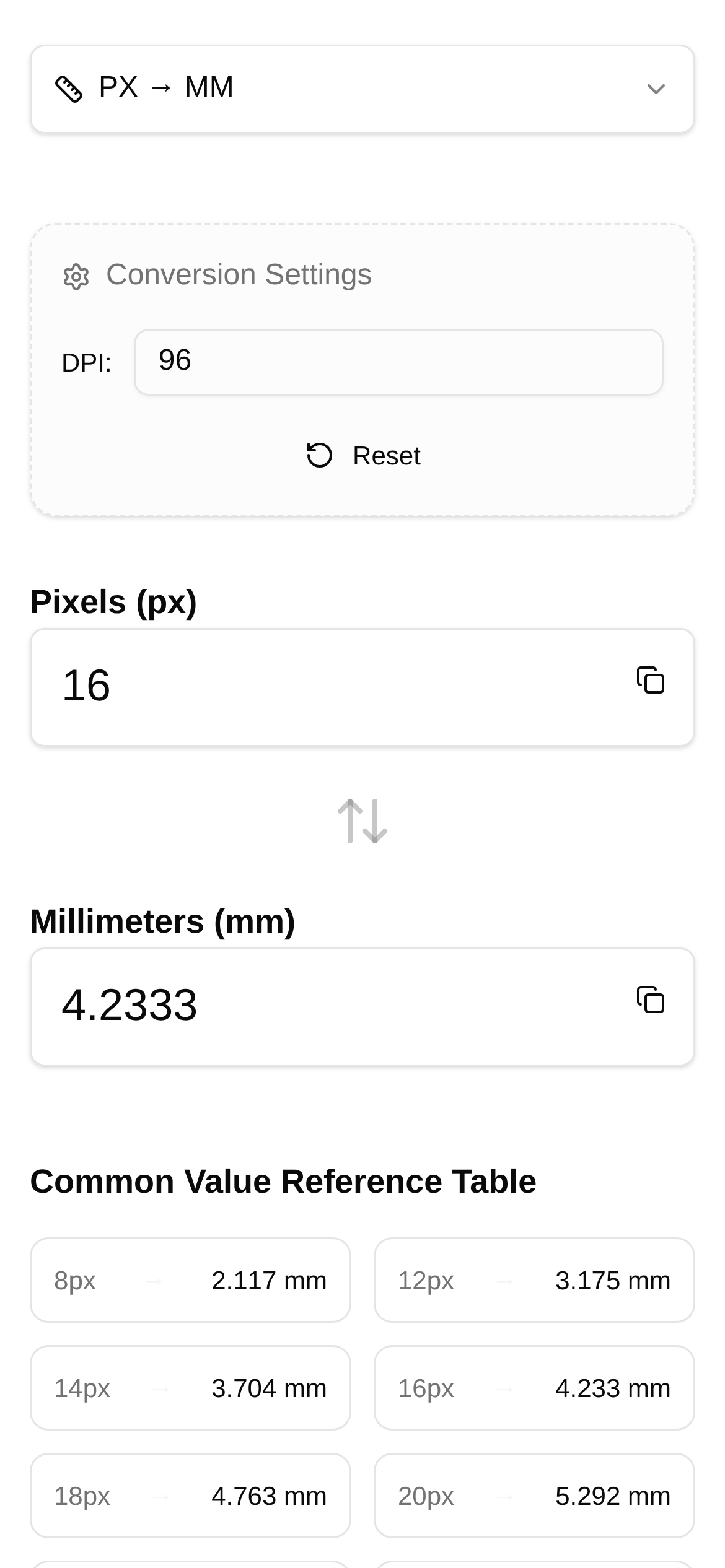
Hey there, fellow designers, publishing professionals, and anyone who is just a little bit "obsessive" about print quality!
Have you ever run into this frustrating scenario: a client excitedly sends you an image and wants it printed at a specific size, but the image dimensions are only in pixels, while the print shop only works in millimeters? Or maybe you spent hours designing a poster that looks incredibly crisp and vibrant on your screen, but when the proof comes back, it looks like someone cranked up a "blur filter"? Simply put, this usually happens when the relationship between PPI, pixels, and millimeters isn't fully understood. Today, we're going to clear up the confusion surrounding print design sizing and share a secret weapon I keep in my toolkit!
Print Design: Screens and Paper Are Two Different Worlds!
In the digital world we navigate every day, every image you see is made up of countless tiny "pixels." But once you cross over into the physical world—especially when printing something out—the way we measure size changes to millimeters, centimeters, and the all-important resolution metrics: "Dots Per Inch" (DPI) or "Pixels Per Inch" (PPI).
PPI plays a crucial role here. Simply put, it's the number of pixels packed into one inch. The higher the PPI, the finer and clearer the image will be when printed. Generally, to ensure printed materials look sharp and avoid pixelation or blurriness, a PPI of around 300 is recommended. So, if your image looks huge on screen but has a low PPI, the physical size it can be printed at clearly will be surprisingly small. Conversely, an image with modest pixel dimensions but an extremely high PPI can still maintain excellent clarity when printed.
So, how do you accurately convert your pixel dimensions into millimeters while meeting the print shop's PPI requirements? This is an unavoidable pain point in our daily workflow. Calculating it manually? It's tedious and highly prone to errors. Looking it up? You'll find a bunch of formulas that will just put you to sleep.
Say Goodbye to Complex Math: Try the "Pixels to Millimeters Converter"
Don't worry! The tool I highly recommend today is designed specifically to solve this headache: the Pixels to Millimeters Converter. Based on your target PPI density, it clearly calculates the physical size relationship between pixels and millimeters. Whether you're doing UI design or print typography, it will feel like a lifesaver.
So, how exactly do you use this Pixels to Millimeters Converter? The interface is incredibly intuitive, meaning even beginners can get the hang of it instantly. Let's take a look at the scenarios it's best suited for and how to use it step-by-step.
Who Is This For?
- Graphic Designers: When client assets arrive and need to be accurately laid out on posters, brochures, or business cards, you have to reverse-engineer the minimum required pixels based on the final print size and required PPI, or convert your current pixel dimensions into actual print sizes. Doing this effectively prevents rework caused by sizing or resolution issues—it's an absolute lifesaver. To master this quickly, check out a Pixels to Millimeters Converter tutorial.
- UI/UX Designers: While UI/UX primarily deals with screens, sometimes you need to take high-fidelity icons or interface elements and use them for physical displays or printed merchandise. When that happens, you need a crystal-clear understanding of how pixels translate to physical dimensions.
- Photographers: When preparing photos for printing or publishing a photo book, you must check if your photo has enough pixels based on the target output size and print requirements to avoid disappointing results.
- Print Shop Staff: Quickly verify whether