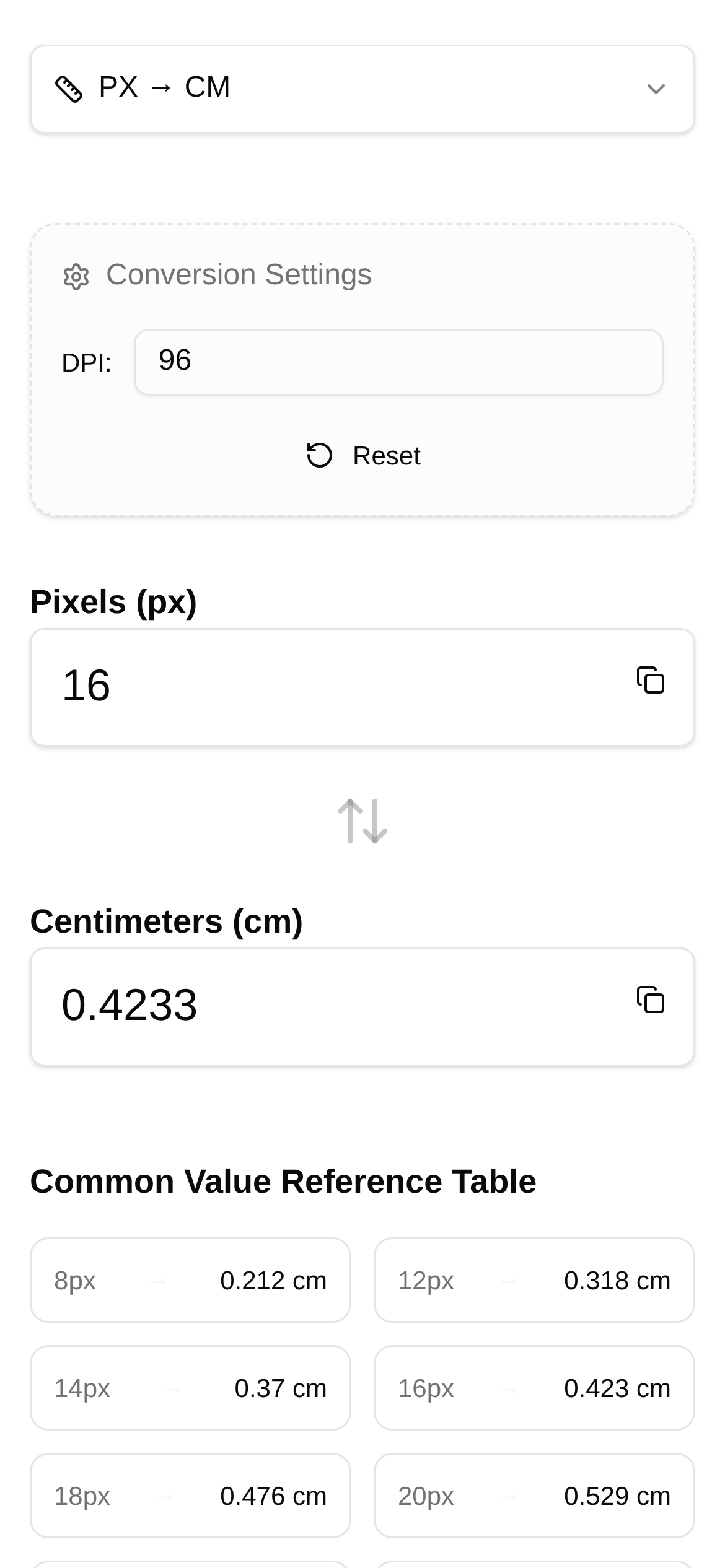
Tool Interface Preview
Pixel to Centimeter Converter

Hey fellow designers and creators, have you ever had one of those maddening moments: you spend hours perfectly laying out an image on your computer, but when you print it, the dimensions are completely wrong! Or when you view the same element across your phone, computer, and tablet, the sizing just looks off? Ultimately, this comes down to a core concept that every designer and content creator needs to understand inside and out—PPI (Pixels Per Inch).
Honestly, understanding PPI is like getting a "translator" between the pixel world and the physical world. It directly determines how large and detailed your design will be in actual physical space. Simply put, the higher the PPI, the more detailed and rich the printed or displayed image will be. Conversely, if the PPI is too low, zooming in even a little will leave you staring at a blurry, pixelated mess.
PPI: The "Translator" Between Digital and Reality
PPI isn't just a cold string of numbers; it's the bridge connecting the tiny "pixels" on our screens to real-world "inches/centimeters." It dictates screen display clarity, and for printed materials, it's the absolute authority on quality. For example, let's say we have an image that is 1000 pixels wide. If your device's PPI is 100, the image will display as 10 inches wide. But if you switch to a device with a 200 PPI, boom—it's only 5 inches wide. So, whether you're doing UI design, print layout, or preparing content for cross-platform display, mastering PPI is an absolute fundamental.
If you ignore PPI, you're asking for trouble:
- Distorted Design Outcomes: Icons or text that look perfectly fine on screen might print out massively oversized or pitifully small.
- Ruined User Experience: That mobile interface you worked so hard on? The elements will be completely misaligned across different phone sizes.
- Poor Print Quality: Images become blurry the moment they are scaled up, resulting in a final product that is simply unviewable.
So the question is, how can we accurately convert pixels to centimeters and say goodbye to these headaches once and for all?
Say Goodbye to Manual Calculations: This Tool Gets It Right
In the past, converting between pixels and centimeters was a real chore. Punching formulas back and forth was not only slow but also highly prone to errors. To solve this pain point, I highly recommend a fantastic online tool—the Pixel to Centimeter Converter.
Why is this tool so great? Let me break it down:
- What it does: Just input the PPI, and it accurately converts pixel lengths (whether width or height) into their corresponding physical dimensions in centimeters, and vice versa. Whether you're doing UI design, print layout, or struggling with screen adaptation, it provides the most reliable dimension references.
- Who needs it?
- UI/UX Designers: Estimate the actual size of elements across various screens during the drafting phase, ensuring consistent design across all devices.
- Graphic Designers / Print Professionals: Accurately calculate the actual printed size of images, eliminating the embarrassment of print products not matching expectations.
- Web Developers: Preview how images will display on screens with different resolutions, optimizing the user experience and making your website more "considerate."
- Content Creators: Ensure that images uploaded to social media and blogs have the perfect dimensions and aspect ratios, preventing platforms from scaling them beyond recognition.
How to Use It: A Step-by-Step Guide
Using this Pixel to Centimeter Converter is incredibly simple. Even if you're a complete beginner, you can master it in no time:
- Open the webpage: Click this link directly: https://www.toolkk.com/tools/px-cm-converter, and you'll enter the "Pixel to Centimeter Converter" page.
- Enter the PPI: In the box labeled "PPI (Pixels Per Inch)," enter the PPI value of your target device. If you're unsure what it is, check the official specs for your device model, or use an online PPI calculator to find it.
- Choose the direction: The tool typically gives you two options: "Pixels to Centimeters" or "Centimeters to Pixels." Choose whichever conversion you need.
- Input the value: Enter the pixel or centimeter value you want to convert in the corresponding box.
- View the result: You don't even need to hit a confirm button; the tool calculates the result in real-time and displays it instantly. Just copy and use it.
See? In just a few steps, you get perfectly accurate conversion results, and your efficiency skyrockets.
FAQs & Tips
When using the "Pixel to Centimeter Converter," you might have a few questions or need to keep some minor details in mind:
- Q: How do I determine the right PPI value?
- A: For screen display, checking your device model's official specs is the most reliable method. For example, the iPhone X has a PPI of 458. For printed materials, 300 PPI or higher is generally recommended for good print quality, though the exact number depends on your printing method and the viewing distance of the final product.
- Q: Why is there a discrepancy between the dimensions calculated by this tool and my actual printout?
- A: There could be several reasons for this error:
- Printer settings: Your printer driver might have hidden settings like scaling or "fit to page" that quietly alter your actual print size. Always check before printing to ensure "Actual Size" or "100% Scale" is selected.
- File formats: Certain image formats, like JPEG, might lose information during compression. While this doesn't directly affect dimension conversion, it can impact image quality.
- Software differences: Different design software might interpret dimension units slightly differently, so it's best to complete your design and export it within the same software environment.
- A: There could be several reasons for this error:
- Q: Who is this Pixel to Centimeter Converter for?
- A: As long as your daily work involves image resizing, cross-platform design, or print layout, this tool is perfect for you. It's an absolute productivity booster, especially for UI designers, graphic designers, photographers, web developers, and anyone who frequently creates visual content like presentations and posters.
- Q: What are its main advantages compared to similar tools?
- A: The biggest highlight of the Pixel to Centimeter Converter is its clean, intuitive interface and highly accurate results. It focuses solely on converting between pixels and centimeters based on PPI parameters, without any flashy, complicated features, ensuring ease of use and reliable outcomes. Plus, it's an online tool—no downloads or installations required, making it incredibly convenient to use anytime, anywhere.
In conclusion, by understanding PPI and pairing it with a handy tool like the Pixel to Centimeter Converter, you can precisely control every detail of your design. This ensures your work is presented flawlessly, whether on screen or in print, and helps you say goodbye to the frustration of "distortion" once and for all!
